
Preview Local Developments with Tailscale
Watch the original video tutorial here. :)
You’re website looks good on your desktop, but what about on your phone?
Preview a local development site on another device with Tailscale!
The first time I tried using Tailscale was for something practical: checking how my website looked on different screens. Desktop browser tools are useful, but sometimes I want ot hold the phone, tap the buttons, and see what is actually happening.
The problem is a site running on my laptop’s localhost isn’t automatically available on my phone. Tailscale can help connect the two. Before we get into the setup, let’s talk about switchboards. Imagine a phone system where an operator connects every call through a central switchboard - like the olden days. 🙂

That’s a useful way to picture a traditional hub-and-spoke VPN: traffic travels through a central gateway before reaching its destination.
Tailscale takes a different approach. It tries to establish encrypted connections directly between devices. Think of your laptop and phone calling each other without sending the conversation through the operator. When a direct connection isn’t possible, Tailscale can use an encrypted relay. (LINK: How Tailscale connections work.)
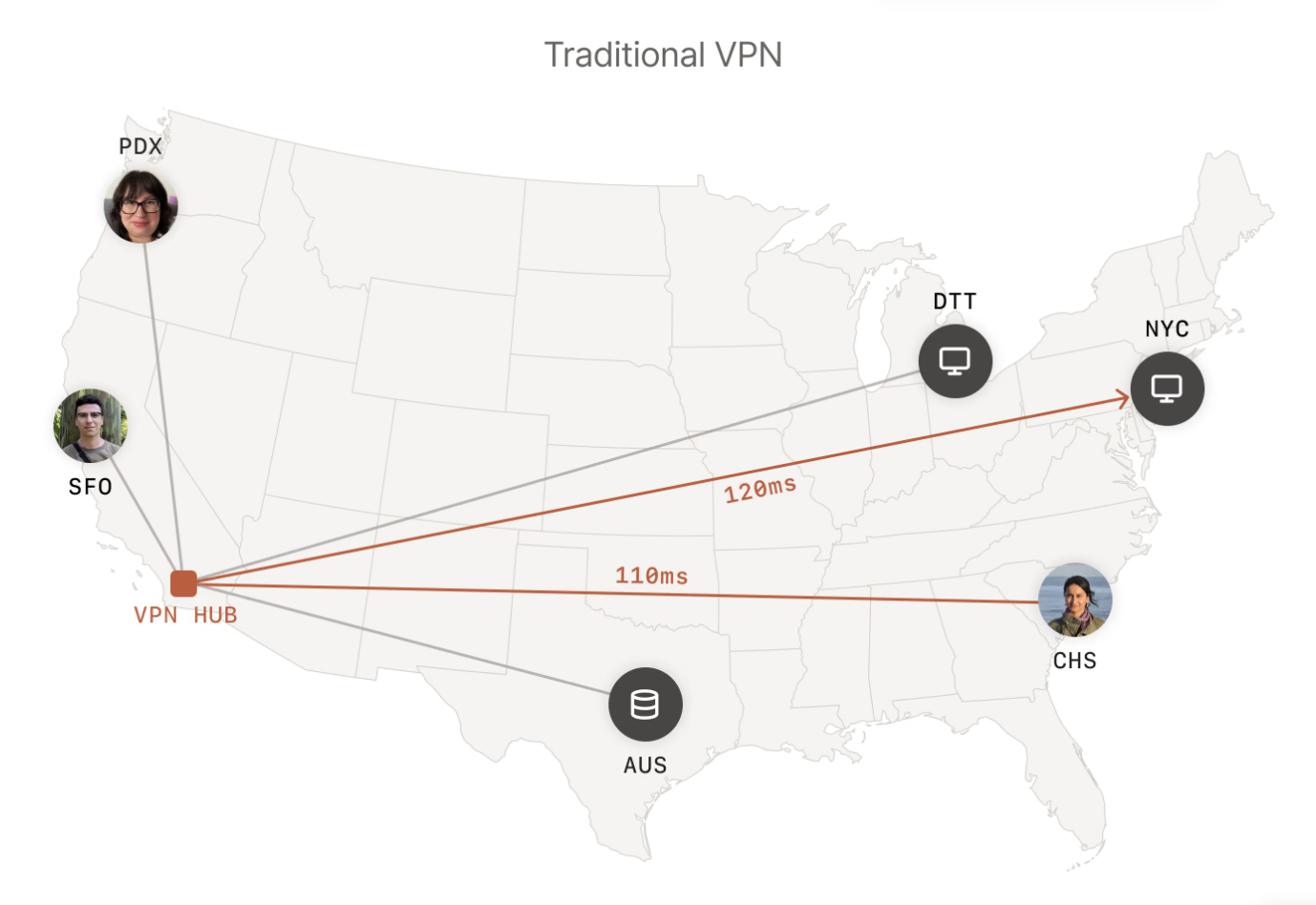
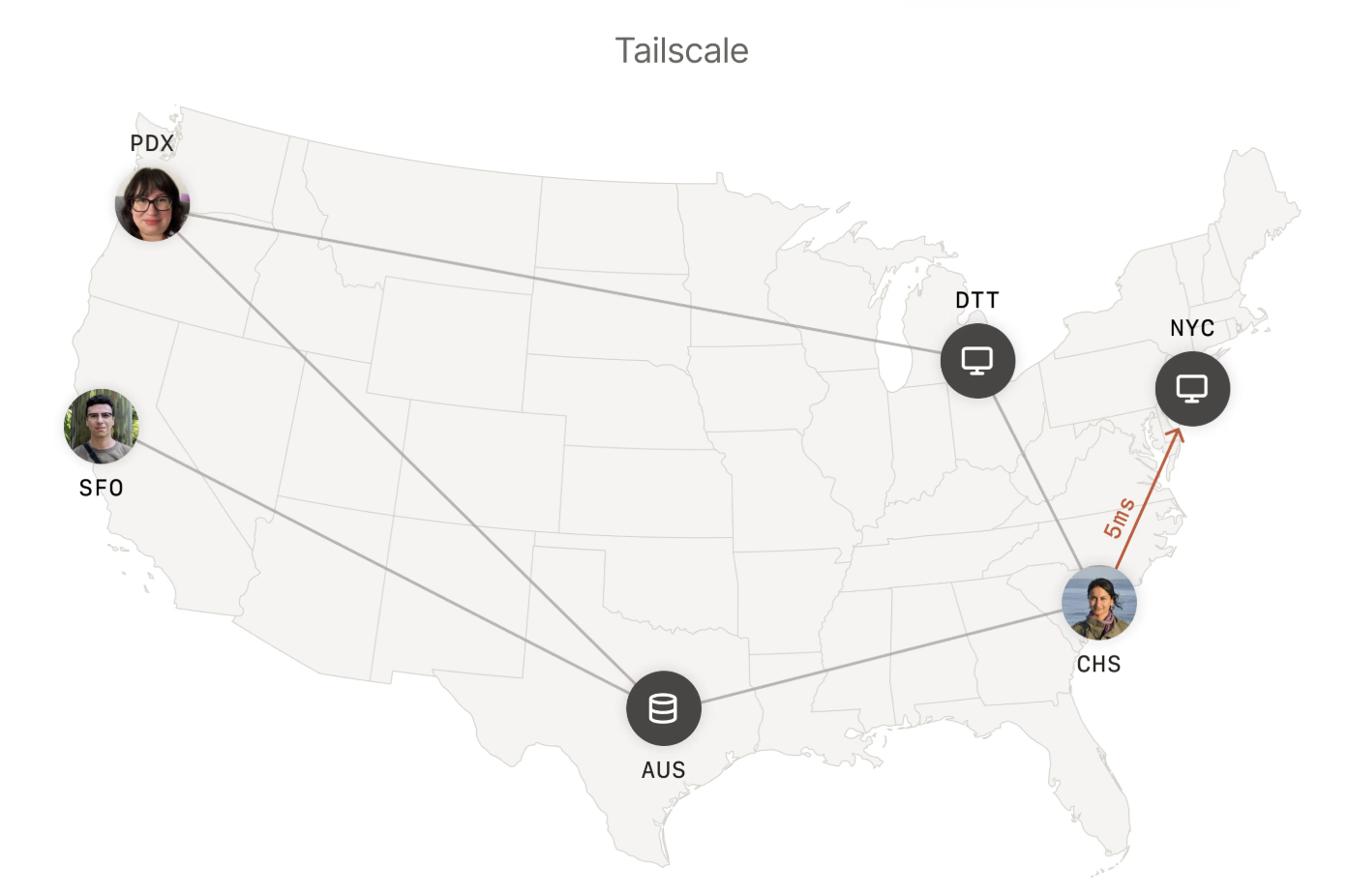
The analogy gives us a starting point that we can make useful.
You’ll need a website already running locally on your computer, plus Tailscale installed on both devices. Sign in and connect both devices to the same Tailscale network - that’s called a tailnet. Give them recognizable names so you can tell your laptop from the tablet you borrowed from your kid (just kidding…maybe). (LINK: Tailscale quickstart.)
First open the site on your computer and check its address. If it’s http://localhost:3000 then 3000 is the port your development server uses.
With the Tailscale command-line tool available on your computer, open a second terminal and run: tailscale serve 3000.
Replace 3000 with your app’s actual port. Keep your development server running. Serve requires MagicDNS and HTTPS certificates to be enabled for your tailnet. Follow any setup prompts if needed. The company prints an HTTPS address that forwards requests to your local app. (LINK: Tailscale’s development-server guide.)
Make sure Tailscale is connected to your phone, then open the HTTPS address printed in your terminal. Use that address, not the localhost. On your phone, localhost means the phone itself. It doesn’t mean you laptop.
Now try your navigation, scroll through the page, and tap those buttons. Does anything feel cramped? Can you comfortably use the menu? This is the part I wanted to see on a real device.\
Serve makes the site available within your tailnet, subject to its access rules. It doesn’t publish the site to the public internet. (LINK: About Serve access.)
Check that both devices are connected to the same tailnet, your computer is awake, and the development server is still running. Confirm that the port matches and that you copied the address printed by Serve.
If your framework reports a blocked hostname, check its allowed-host configuration and permit the specific hostname you’re using. If you’ve customized your tailnet’s access rules, those must also allow the connection.
When you’re finished with the foreground Serve session, press Ctrl+C in its terminal. (LINK: Serve command reference.)
You’ve now connected a networking concept to something you can actually use: checking your work on another screen.
And yes, I still recommend testing the buttons with your actual thumbs.
About the author
- Hi! I'm Roxy. I am the Developer Community Manager and Advocate at Torc.dev. I have a background in public education and content creation as well. I created the Tube Feed Tracker PWA that is used by a niche part of the medical community around the world daily. I've spoken at conferences, appeared on podcasts, and was a guest two episodes of CodeTV's Web Dev Challenge. I love learning, teaching, and having fun in tech. :)
Comments
Join the discussionNo comments yet. Be the first to comment.